

Why external login helps
When a portal has its own separate user account system, someone needs to manage those users separately too.
That usually means more onboarding steps, more offboarding steps, and more places where account information can drift out of sync.
External login keeps the sign-in process simpler:
- The user visits your portal.
- They choose “Sign in with Microsoft”.
- Microsoft authenticates them.
- They return to your portal as a signed-in user.
From the user’s point of view, this is straightforward. They do not need to register another account or remember another password. If they are already signed in with their Microsoft account, the process can be especially quick.
From the portal’s point of view, Microsoft confirms who the user is. Your site can then decide what that user is allowed to see or do: Microsoft sign-in handles authentication, while your portal still controls authorization.
The practical benefits
The most visible benefit is easier access. Users can start using the portal with an account they already trust and understand.
The bigger operational benefit is usually faster onboarding. New users do not need a separate portal account before they can begin. In many organizations, this makes internal rollouts smoother and reduces the number of account-related questions.
It can also reduce support overhead. Password resets, locked accounts, and account lifecycle tasks are easier to handle when fewer systems are involved.
There are security benefits too. Fewer separate credentials means fewer separate login details to manage, store, forget, or reuse. And when your organization already has Microsoft account policies in place, your portal login can fit into that existing identity setup instead of becoming another isolated system. We could also discuss periodic password changes and how little they actually help, or even how they can make security worse. For a while, they seemed to improve security, but over the years research has shown that this practice is, in fact, an anti-pattern. But let's not open that door here.
Easily implement SSO
In Orchard Core, an ASP.NET Core-based CMS and framework, you can enable the Microsoft 365 or Entra ID login features, fill in your credentials, and use Microsoft sign-in in your site. Due its modular nature, integrating this feature into any ASP.NET Core application is as simple as referencing one or more (depending on how much of Orchard Core’s user management capabilities you want to user) NuGet packages.
Existing users can attach their Orchard Core account to their Microsoft account. If registration is enabled, you can also let new users in when they have an account in your Microsoft organization or Entra ID setup.
There is also a built-in way to control what username should be generated for new users, and what roles users should receive based on external claims. You still need to handle internal roles and permissions, but you can decide what roles Microsoft users should get.
Okay, how can I try this?
You can try Microsoft login in Orchard Core without writing custom code.
The easiest way is to create a site on DotNest, our Orchard Core hosting platform. DotNest lets you run an Orchard Core site without managing hosting, upgrades, or infrastructure yourself. It also allows you to log in with your Microsoft account, so you can experience the same kind of streamlined sign-in flow directly.
Create a site on DotNest, enable the Microsoft authentication feature, connect it to your Microsoft app registration, and test the login flow.
You don’t need to build Microsoft SSO from scratch: Orchard Core already provides the admin-side setup, and DotNest gives you an easy environment to try it.
Choose the Microsoft login option
First, decide which Microsoft login option fits your case:
- Microsoft Account: If you want users to sign in with personal Microsoft accounts.
- Microsoft Entra ID: If you want users to sign in with work or school accounts from Microsoft 365 or your organization’s Entra ID tenant.
Set up Microsoft Entra ID login
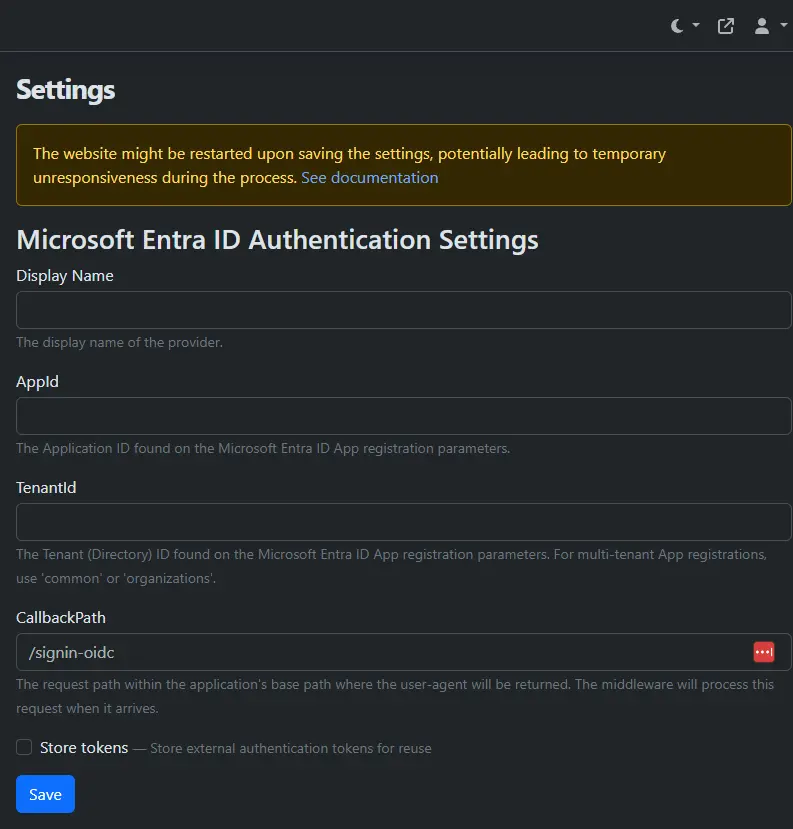
- Enable the Microsoft Entra ID Authentication feature in Orchard Core.
- Create an application registration in Microsoft Entra ID and configure the required redirect URI.
- Copy the Application ID and Tenant ID from Microsoft Entra ID.
- Enter those values in the Orchard Core Microsoft Entra ID authentication settings.
- Save the configuration and test the login flow.
After this, the login page can show a Microsoft sign-in button. Users authenticate with Microsoft, and Orchard Core handles the local user account, roles, and permissions.
Decide who can register
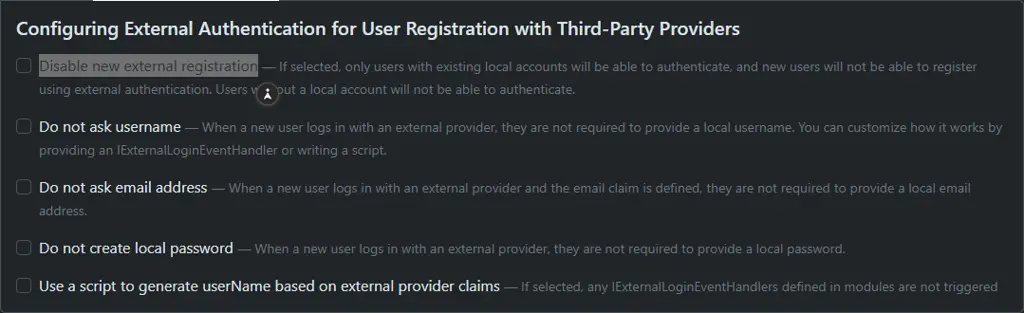
If registration is enabled, new Microsoft users can be created as local Orchard Core users during their first login. If registration is not enabled, only existing local users can use Microsoft login.
Existing users can also link their local Orchard Core account to their Microsoft account through external logins. This is useful when you already have users in the portal and want to introduce Microsoft login later without recreating everyone manually.
Map users to roles
Authentication only answers the question: "Who is this user?"
Your portal still needs to answer: "What can this user access?"
That is where Orchard Core roles and permissions remain important.
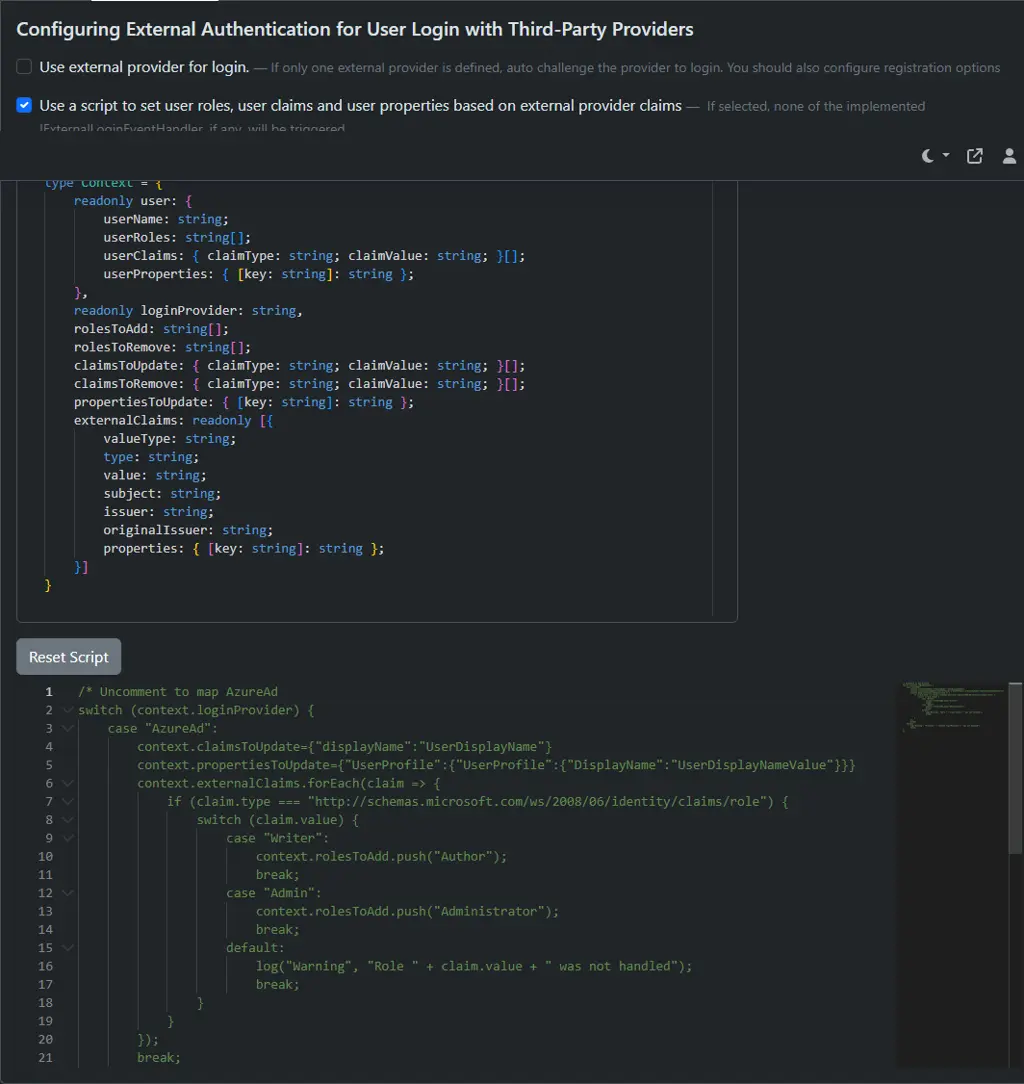
You can keep managing roles in Orchard Core, or configure role assignment based on external claims from Microsoft Entra ID. This lets you connect Microsoft-side identity information with Orchard Core access control.
For example, you can decide that users from a specific Microsoft Entra ID group should receive a specific Orchard Core role. That way, Microsoft remains the identity source, while Orchard Core controls what portal features, pages, or admin areas the user can access.
You can do this from the user login settings on the admin directly:
Check out the official documentation for setting this up, or contact us to integrate Microsoft SSO into your ASP.NET Core application or Orchard Core portal, configure the right user flow, and connect Microsoft identities with Orchard Core roles and permissions.


